
- Getting Started
- Sign Up
- Workflow Overview
- Glossary
- Connect with WordPress
- Connect Web Apps
- Workflows
- Triggers
- Actions
- Edit Workflows
- Types of Trigger Data
- Data Mapping
- Test Action
- Workflow History
- Auto-replay Failed Steps
- Update/Delete Connections
- Webhook URL Update
- Ensuring a Seamless WordPress Connection with OttoKit
- How to Disconnect OttoKit from WordPress
- How to Delete a WordPress Connection in OttoKit
- How to Generate a Random Number in OttoKit
- Automatically Add WooCommerce Orders to Google Sheets
- Create ClickUp Tasks from Slack Messages
- Automatically Respond to Form Submissions
- Workflow Tools
- Automatically Add WooCommerce Orders to Google Sheets
- Add SureCart Orders to Google Sheets
- Send Elementor Pro Form Submissions to Google Sheets
- Send Gmail Notifications When WordPress Posts Are Created
- Send WooCommerce Order Confirmations to Gmail Automatically
- Send SureCart Order Data to Brevo
- Prerequisites
- Building an Integration
- Setting Up Authentication
- Setting Up Triggers & Actions
- Publishing Integration
- How To Authenticate Your Application Using The API Key Method
- How to Set-Up the Integration Based on Auth Type Bearer Token
- How To Authenticate Your Application Using OAuth 2.0
- How To Authenticate Your Application Using Basic Auth
- How To Authenticate Your Application Using The JWT Bearer Method
How Failed Steps are Auto-Replayed in OttoKit?
OttoKit is a workflow automation platform that enables you to create automated workflows with ease. One of the key concepts of OttoKit is its auto-replay feature, which retries failed steps of a workflow automatically.
The auto-replay feature also helps to ensure that no critical steps are missed in the workflow due to a failed step.
To understand better, imagine a scenario where you have set up a workflow to send automated email notifications via SMTP when a new lead is added to your CRM.
Although this workflow will run without problems, there are instances where errors may arise.
For instance, there may be server issues on the SMTP provider’s end or invalid information could be passed from the CRM to the email step, such as an invalid email address.
So in this scenario, if the step to send the email fails because of any reason, OttoKit will automatically retry to send the email up to six times.
The first retry attempt will occur five minutes after the step fails, with subsequent attempts following the below intervals from the time when the step failed for the first time:
- 5 minutes
- 30 minutes
- 60 minutes
- 3 hours
- 6 hours
- 24 hours
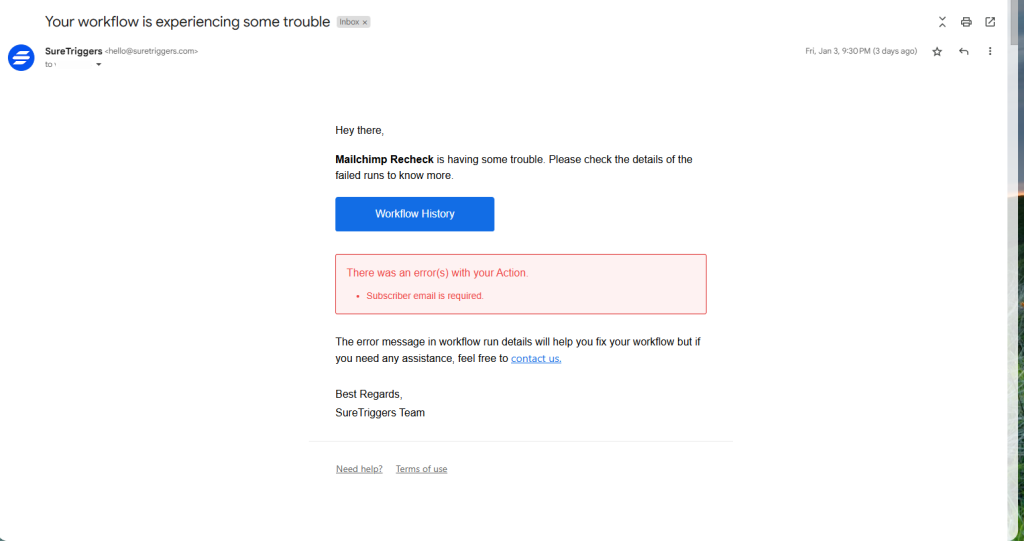
If the step continues to fail after six attempts, OttoKit will send an email notification to you, indicating that the step has failed.
Now, you can also manually replay the workflow after resolving the errors.
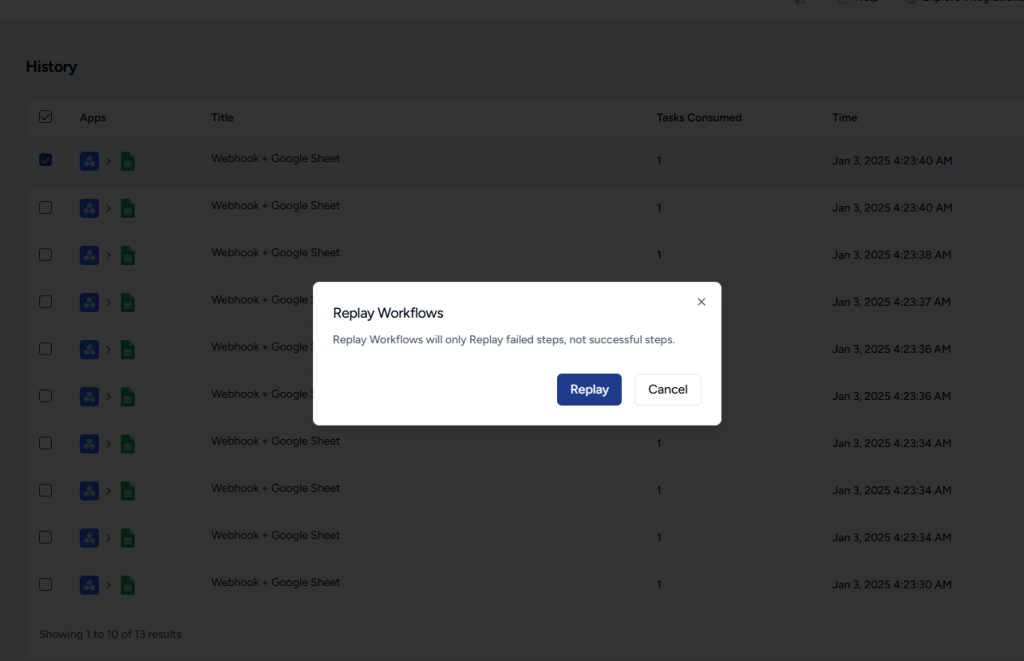
To check for errors and replay a workflow, you can simply follow the instructions provided in this article – Replay Failed Steps in Your Workflow Runs.
Hope this information helps but if you still have questions, feel free to reach out to us!
We don't respond to the article feedback, we use it to improve our support content.